
503-488-2008
Our Location
- 1310 NW Naito Pkwy #112
- Portland, OR 97209
- Map + Directions
This guide provides step-by-step instructions on how to join a Microsoft Teams meeting. It covers joining the meeting using the Microsoft Teams app or the browser, adjusting privacy settings, updating your name, and accessing dial-in information for audio-only participation. It also explains how to enable privacy settings for audio and video on your browser and outlines the various engagement options available during the meeting. If you are a homeowner and need to attend a meeting using Microsoft Teams, this guide will walk you through the process.
Within the emailed calendar information or from your Homeowner Portal Calendar, click "Join the Meeting Now"
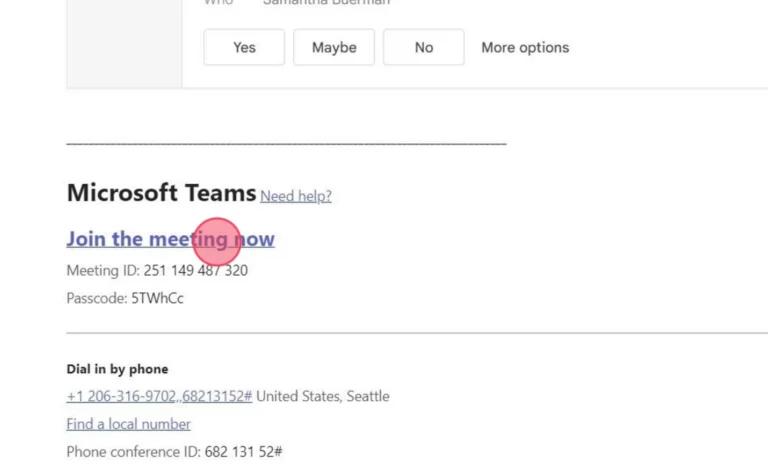
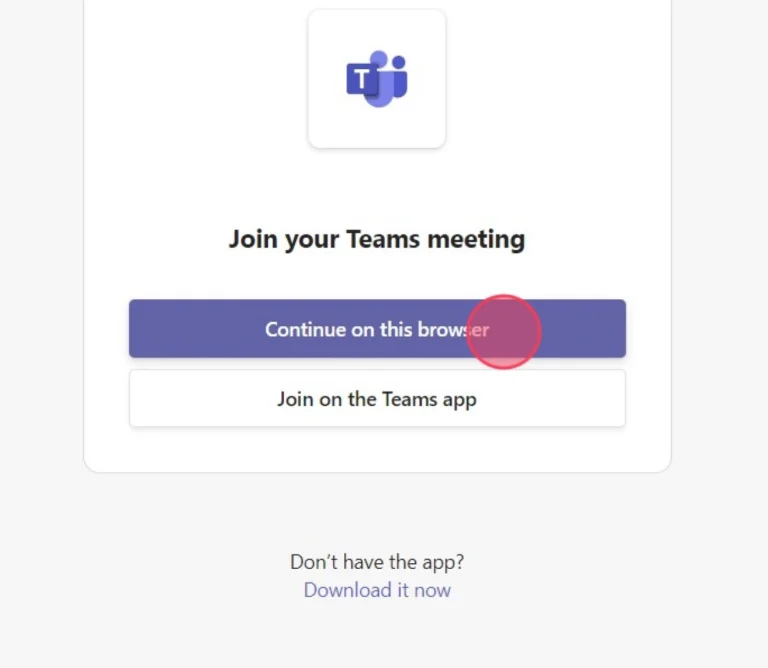
If you have the Microsoft Teams app you may join using that; it will display your name based on your Microsoft Profile.
If you do not have the app you may download it or click "Join meeting from this browser"
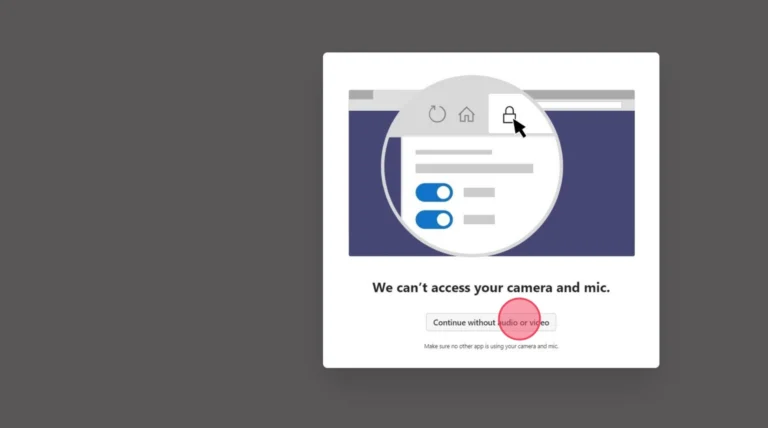
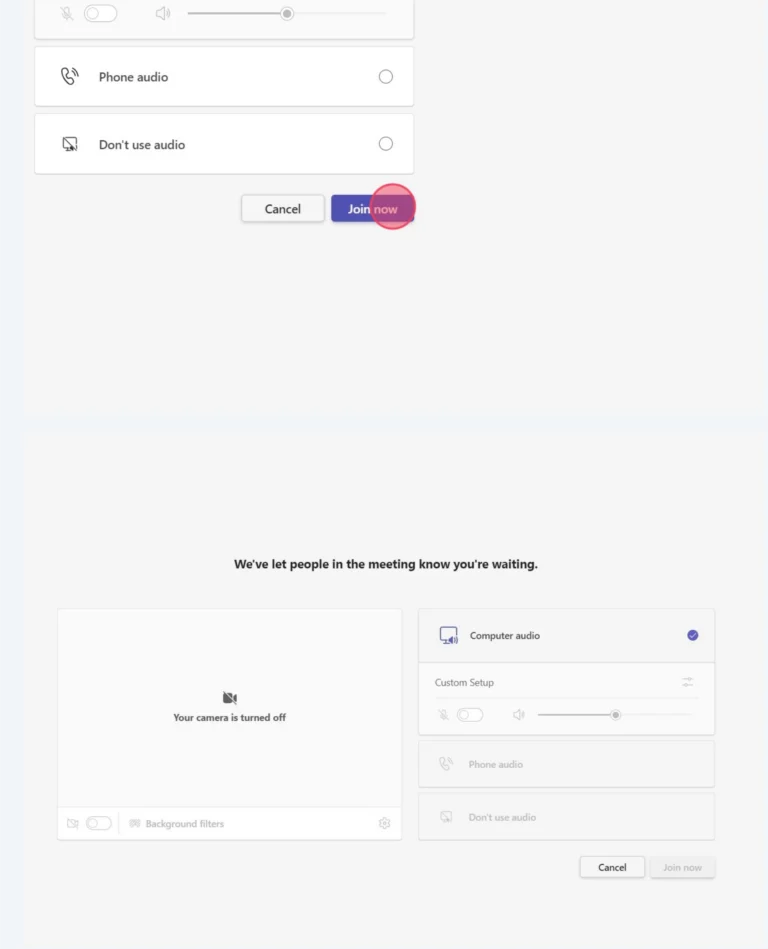
Upon joining, you may need to adjust your computer privacy settings, or you can continue without Audio or Video; if you continue without it, steps 6-8 will show you how to collect the dial-in information for audio.
If you wish to update your settings, please review steps 9-11.
When joining as a guest, click the "Type your name" field and update. In this example, we have used CWD IT. However, it is recommended that homeowners use both their unit number and name.
Example: 809 Bob Smith
If you are already a Microsoft User with an account, it will populate with your Microsoft Profile Name.
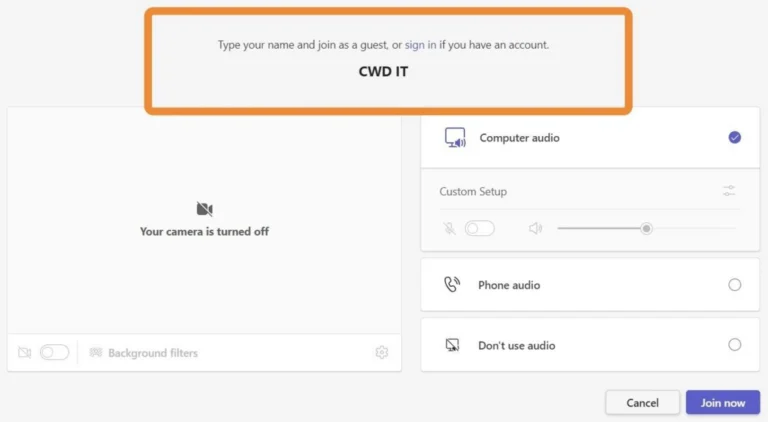
Once the information has been updated, click "Join Now".
From there, you will be admitted to a waiting room, where you will be admitted when the meeting begins or after a quorum tabulation has been updated for annual meetings.
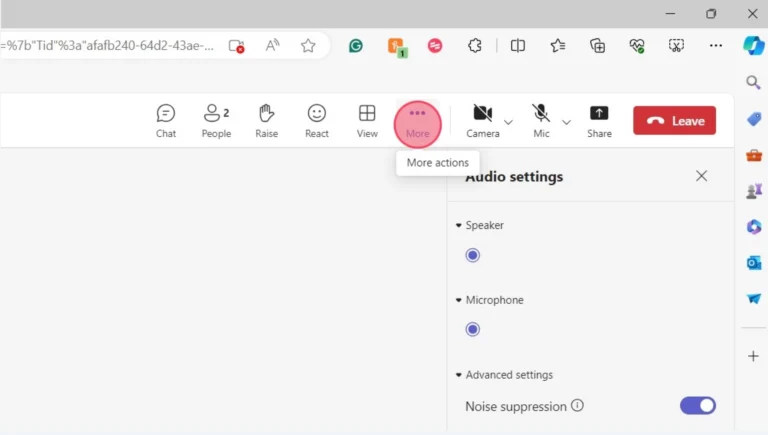
If you have not enabled the settings to connect to audio and video through your computer, click "More" at the top.
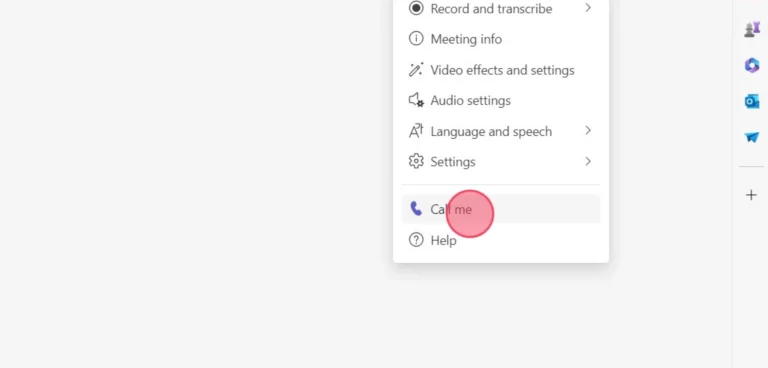
Click "Call me"
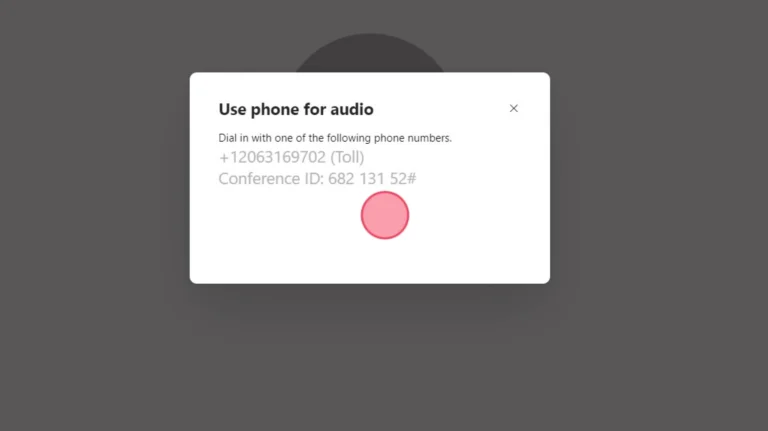
The Dial In information will display on your screen for you to then call into the meeting for audio only.
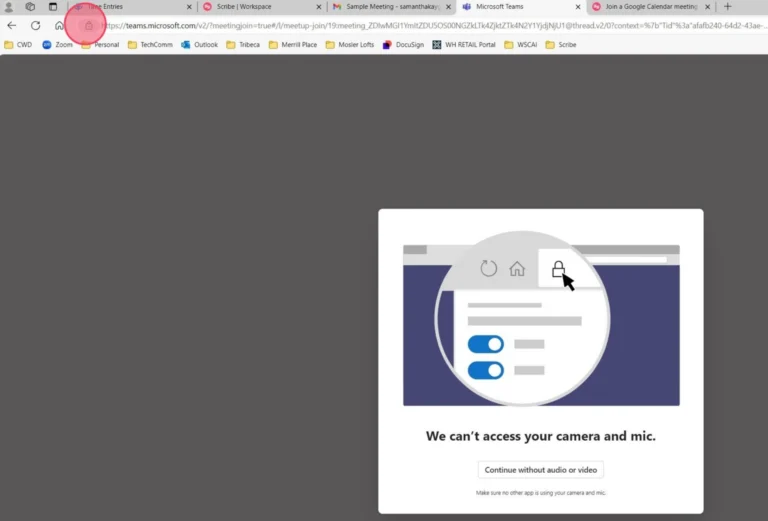
Upon joining the meeting, if you receive this message and want to enable audio and video through your browser. Click "View site information" it is shaped like a lock directly before the web address.
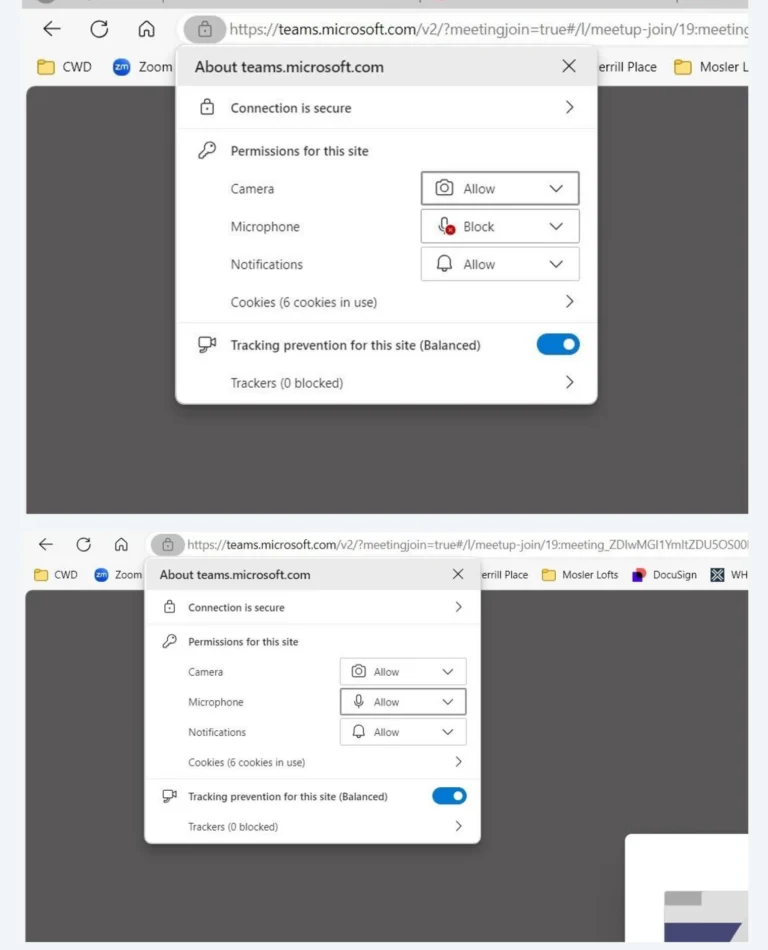
Within that setting drop-down you can allow your camera and microphone the appropriate permissions.
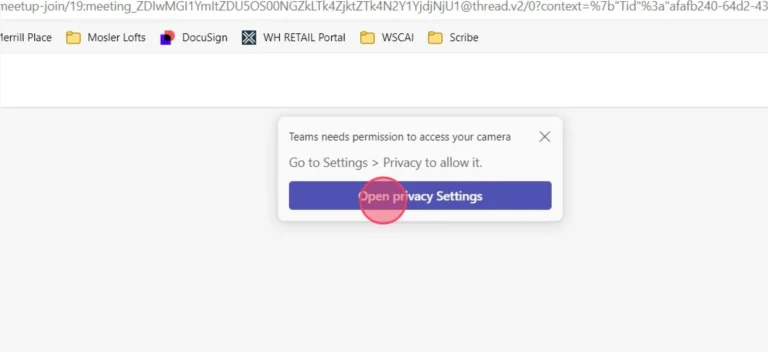
You may receive "Open privacy Settings" link - this will redirect you to your computer's control panel for further privacy setting adjustments if needed.
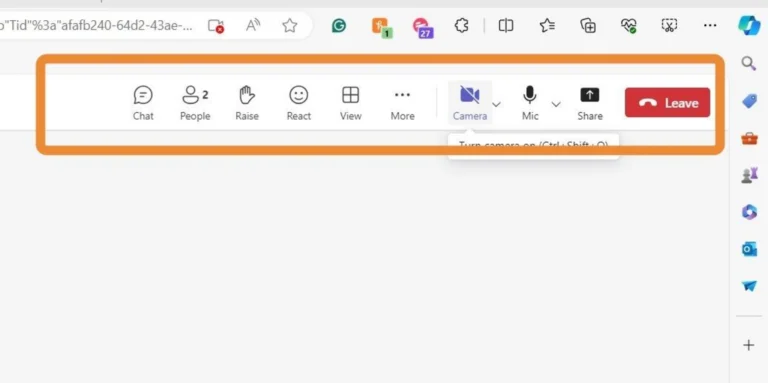
Once in the meeting you have options to chat, raise your hand, react with emojis, turn your camera on or off and to mute your microphone.
The host of the meeting may also mute your microphone, if trying to control the background noise when the board is conducting business.
CWD Group understands your association’s needs better than anyone. We offer full-service community management in Oregon and Southern Washington.
Take the first step towards successful community management. Submit a request for proposal, and we will reach out to you for more information.