
503-488-2008
Our Location
- 1310 NW Naito Pkwy #112
- Portland, OR 97209
- Map + Directions
Tip! All owners have several options for the payment of recurring, ancillary, and special assessment fees (“Assessments,” often referred to as ‘dues’), including personal check, Bill Payer, automated withdrawal (AutoPay) from your bank account, or payment via credit/debit card.
Checks are to be made payable to your Association, and sent to the c/o: CWD Group, Inc. - PO Box 5127, Portland, OR 97208 . Please include your Account Number on the memo line of your check to ensure proper and timely crediting of your account. Your Account Number can be located by signing into your eUnify account at www.cwdgroup.com. Payments must be received in accordance to your association’s delinquency policy. Feel free to contact our office [<a href="">emailus@cvwdgroup.com] or 503-488-2008 for online account assistance.
Tip! Payment coupons are available upon request to save costs for your community. If you’d like to receive payment coupons, please email your request to coupon@cwdgroup.com with your name and Account Number. When a new fiscal year starts, there is often a change in the amount of the Assessment. Please remain aware of changes in the amount of the Assessment and update your Check payment accordingly.
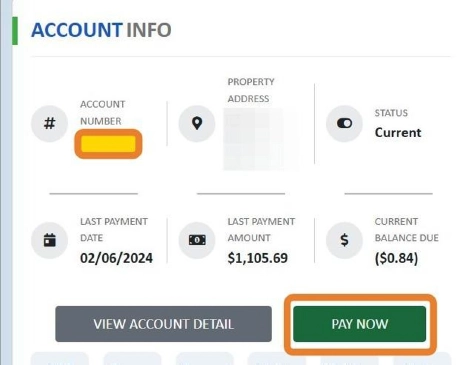
In the Homeowner Portal, you will see the Account Number in the top left corner of the “Account Info” Box. Click "PAY NOW" to begin electronic payment options and review the current settings.
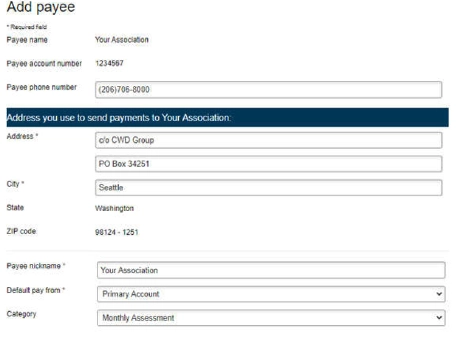
You may use Bill Payer, or any similar automated bill paying system offered by your banking institution. When establishing your Bill Payer payment:
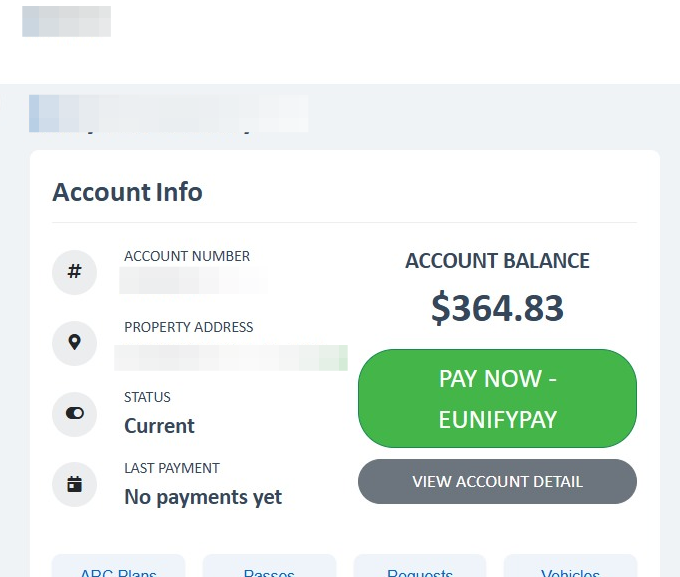
Access your eUnify account at www.cwdgroup.com. Once logged in, click the green PAY NOW- EUNIFYPAY button:
Click "Payment History" to review prior payments.
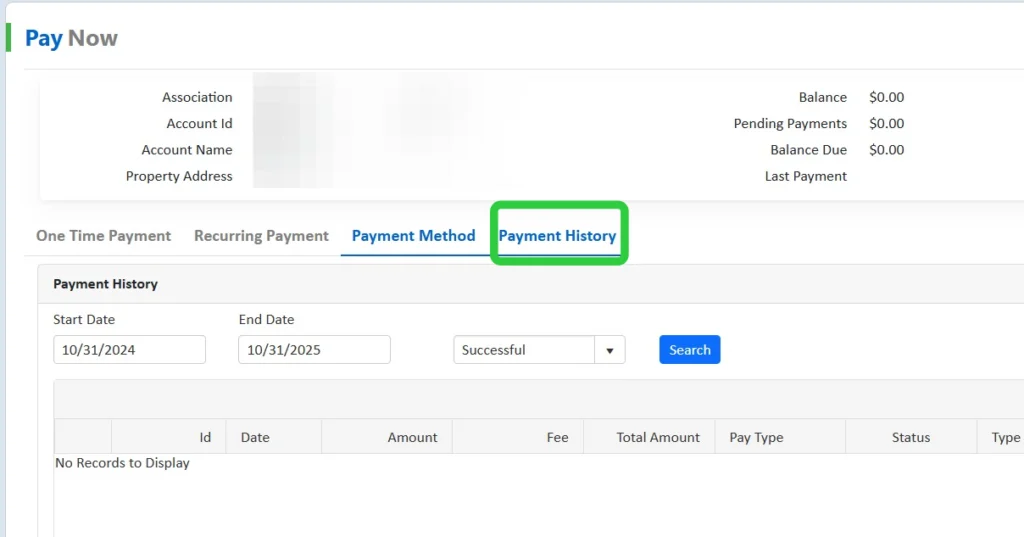
Click "Payment Method" Select the Payment Method Tab and then Add Payment Method or edit already established payment methods.** Various cards are accepted, including bank routing and account numbers. Clicking the blue hyperlink Payment Fee will provide you with a list of applicable fees and charges based on the payment type and amount. eUnifyPay charges a fee for utilizing this online payment service. This fee helps offset the ongoing support and maintenance costs of providing a secure, integrated online payment portal for your association.
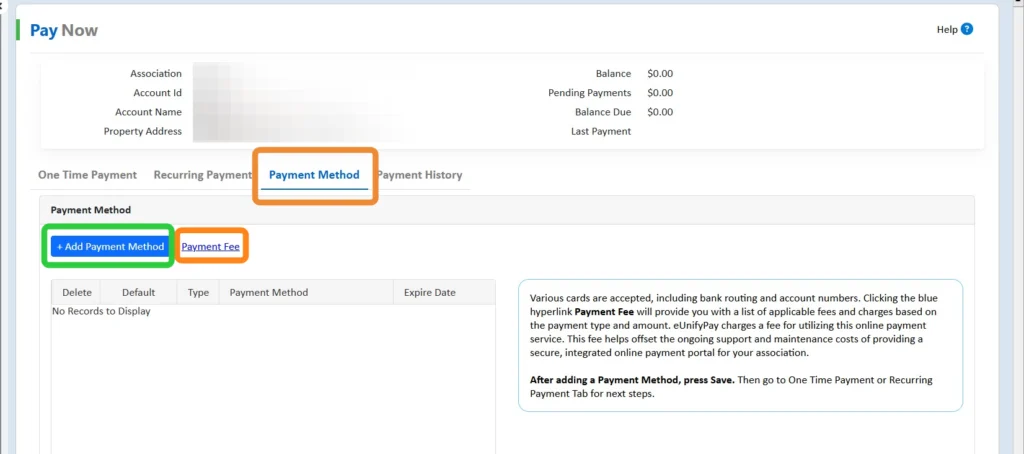
After a Payment Method has been added, then you may use the tabs to navigate to One Time Payment or Recurring Payment.
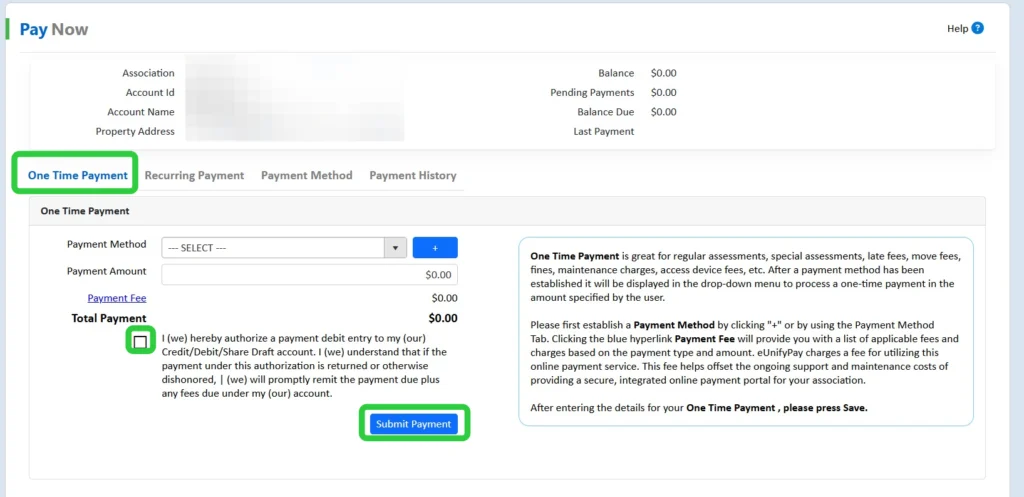
One Time Payment is great for regular assessments, special assessments, late fees, move fees, fines, maintenance charges, access device fees, etc. After a payment method has been established it will be displayed in the drop-down menu to process a one-time payment in the amount specified by the user.
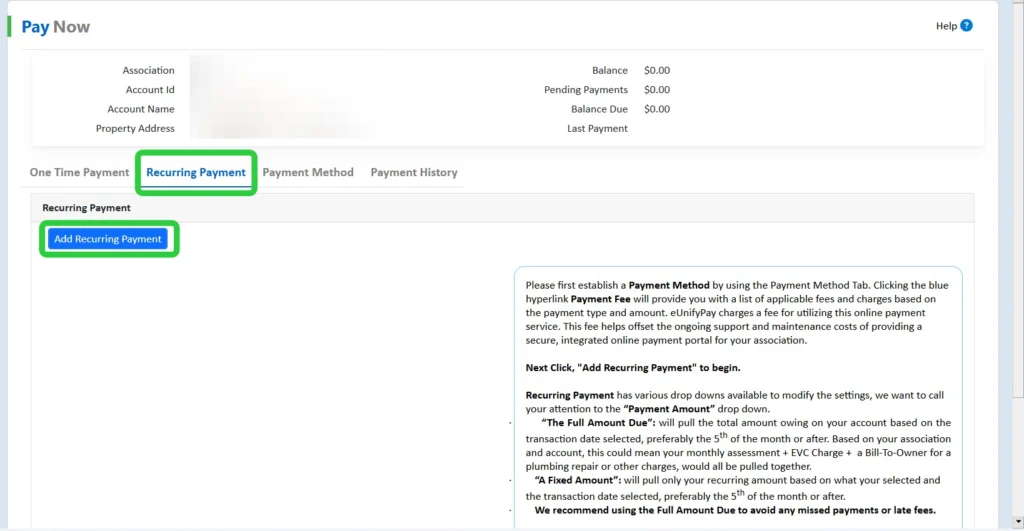
Another option is Recurring Payments, however, a Payment Method must first be established. Click the Recurring Payment Tab and then "Add Recurring Payment"
Recurring Payment has various drop downs available to modify the settings, we want to call your attention to the "Start Date" & “Payment Amount”. The recurring autopay will start on that month, day, and year you enter in the Start Date field. Please note that recurring autopayments will process on the same day in the following months. Please make sure the day of the month is within your association’s delinquency policy grace period. Recommendations are to have the recurring autopayment process between the 5th and 10th of each month.

The various settings include: Nickname, Payment Method, Frequency (Monthly, quarterly etc), Start & End Date, Payment Amount (more details above) and Maximum Amount.
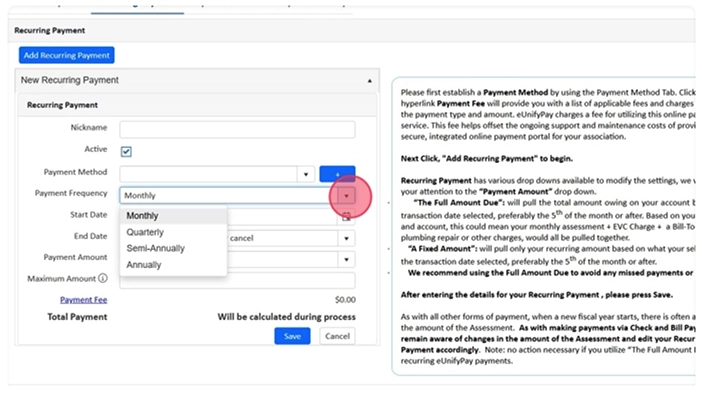
After entering the details for your One Time Payment or Recurring Payment, don’t forget to save.
Tip! As with all other forms of payment, when a new fiscal year starts, there is often a change in the amount of the Assessment. As with making payments via Check and Bill Payer, please remain aware of changes in the amount of the Assessment and edit your Recurring Payment accordingly. Note: no action necessary if you utilize “The Full Amount Due” for recurring eUnifyPay payments.
CWD Group understands your association’s needs better than anyone. We offer full-service community management in Oregon and Southern Washington.
Take the first step towards successful community management. Submit a request for proposal, and we will reach out to you for more information.